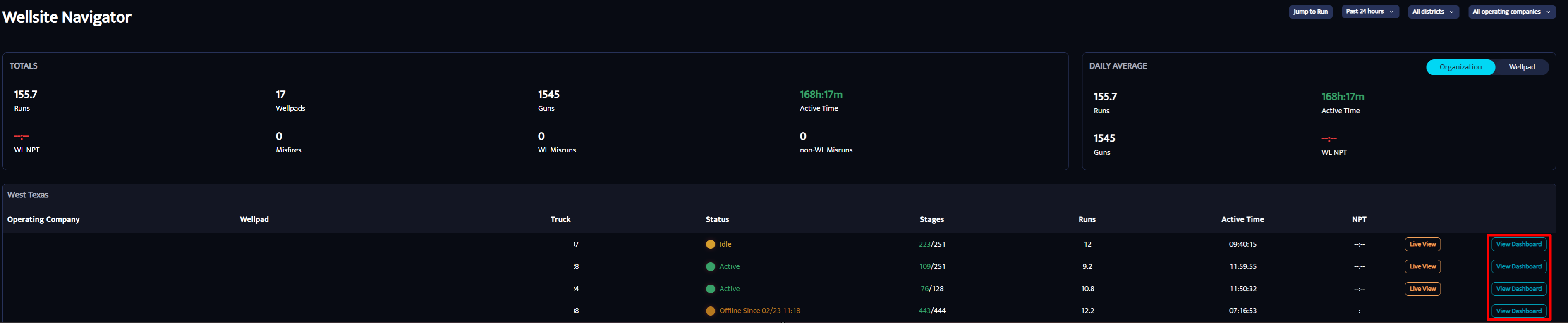
View Dashboard
The Dashboard shows all key information for the well pad you selected. It provides a clear view of activity, performance, and service quality in one place.
1. Active Wells and Unit Status
At the top of the Dashboard, you’ll see the current well and unit status.
Active Wells
The well currently being worked will appear as Active
Each well is displayed with a color and progress indicator so you can quickly see how it’s performing
Units
Units that are running will show as Active
Units that are not running will appear under Standby Units

1.2. Forecast
The Forecast section shows an estimate of the remaining work on the pad, including:
Stages left
Estimated days remaining
Guns left
Plugs left
This helps you understand how much work is still pending.
1.3. Time Window
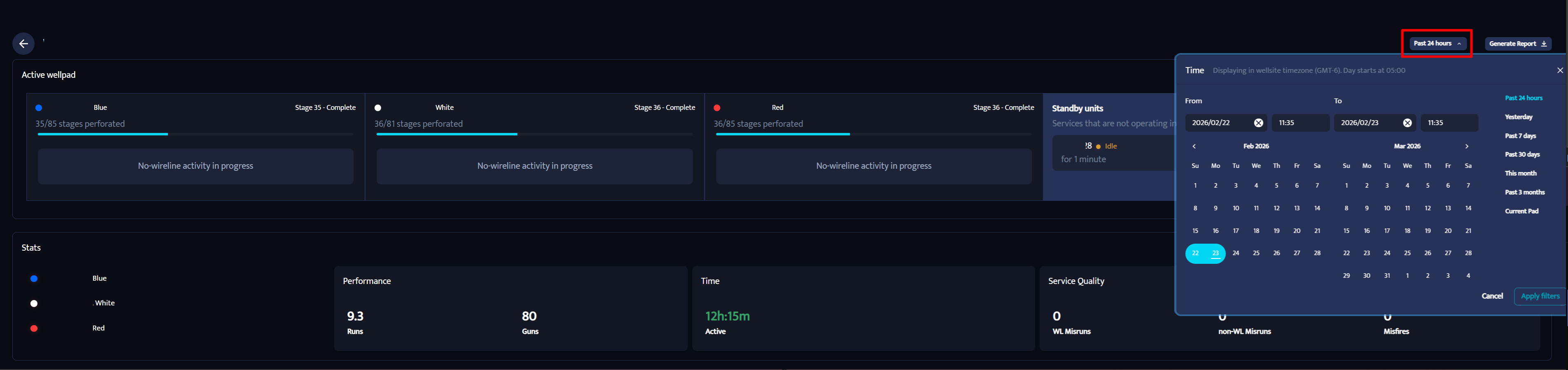
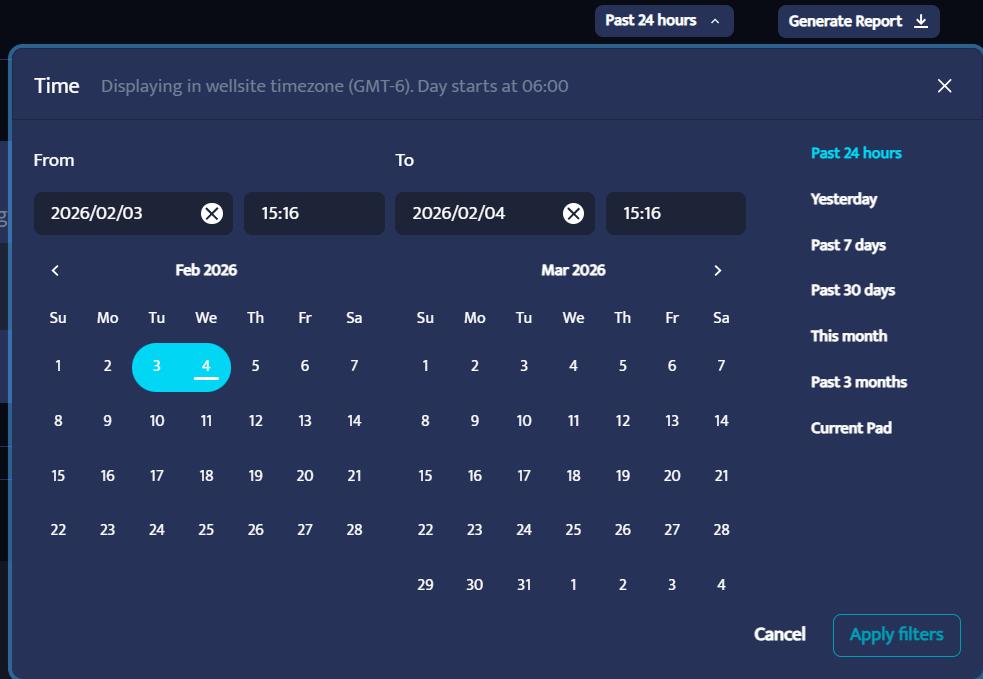
In the upper-right corner of the Dashboard, you’ll find the Time Window Configuration.
You can use this to select the time range you want to review, such as:
Last 24 hours
Custom range
You can also select Current Pad to display data starting from when the pad was created.
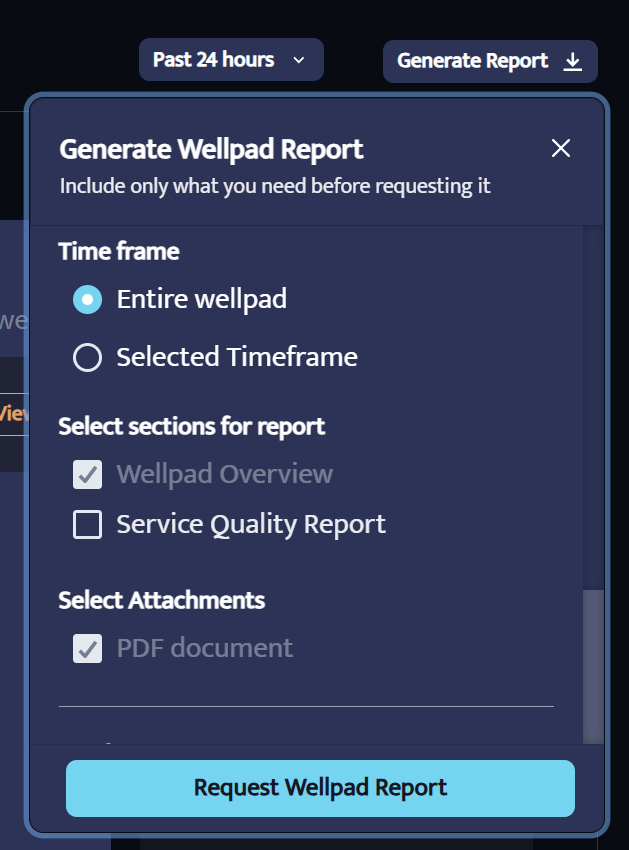
1.4. Generate Report
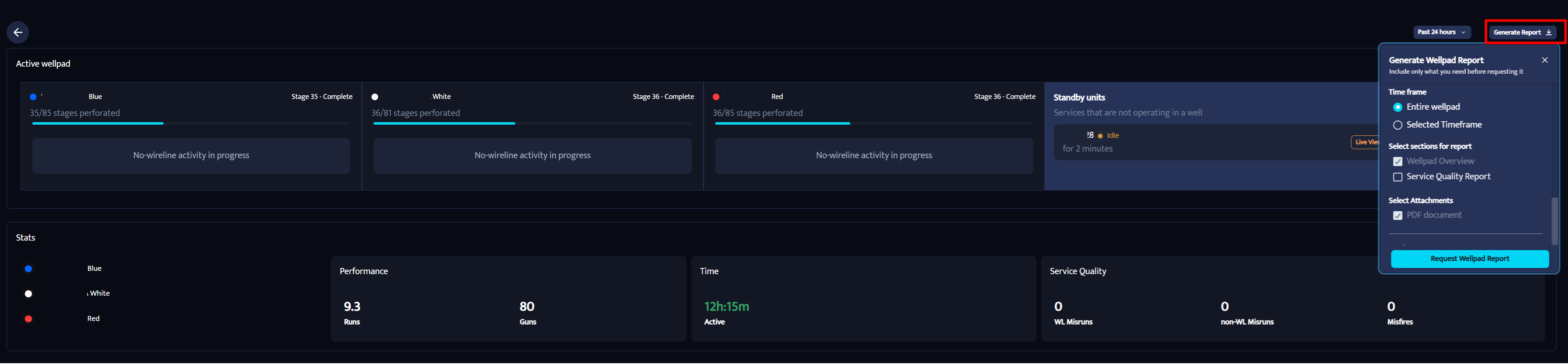
Next to the Time Window option, you’ll find Generate Report.
This creates a PDF report for the selected well pad which includes stats and you can select so it includes SQ information as well.
You can select to send it to yourself or add any other email address to automatically receive the report.
2. Well Pad Statistics
Below the top section, you’ll see well pad statistics for the selected time range, including:
Number of runs completed
Guns used
Active time
If any Service Quality Events occurred, they will appear on the right side of this section.

3.1 Timeline
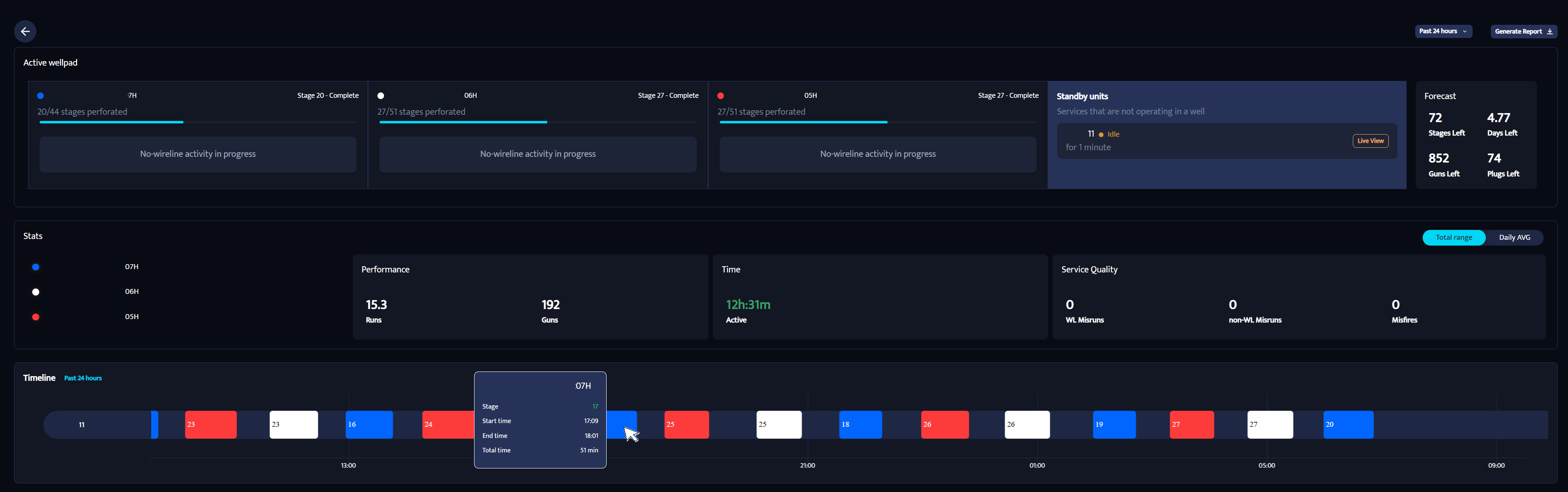
The Timeline provides a visual view of all runs completed during the selected time window.
Each run displays:
Well Color
Stage number
When you hover over a run, you’ll see:
Start time
End time
Total run time

Click on any stage in the timeline to review all recorded information for that stage, along with the shot plan used.
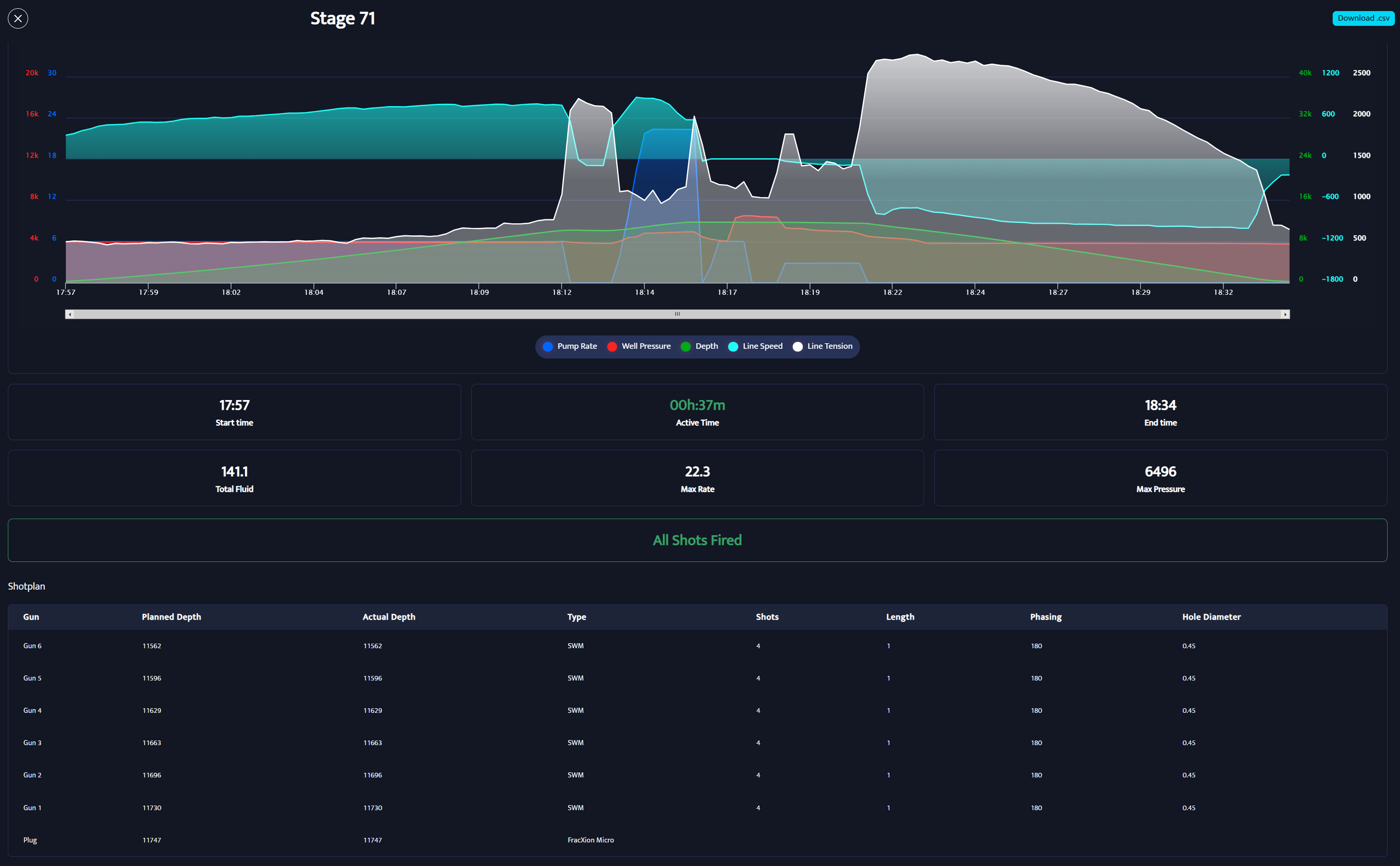
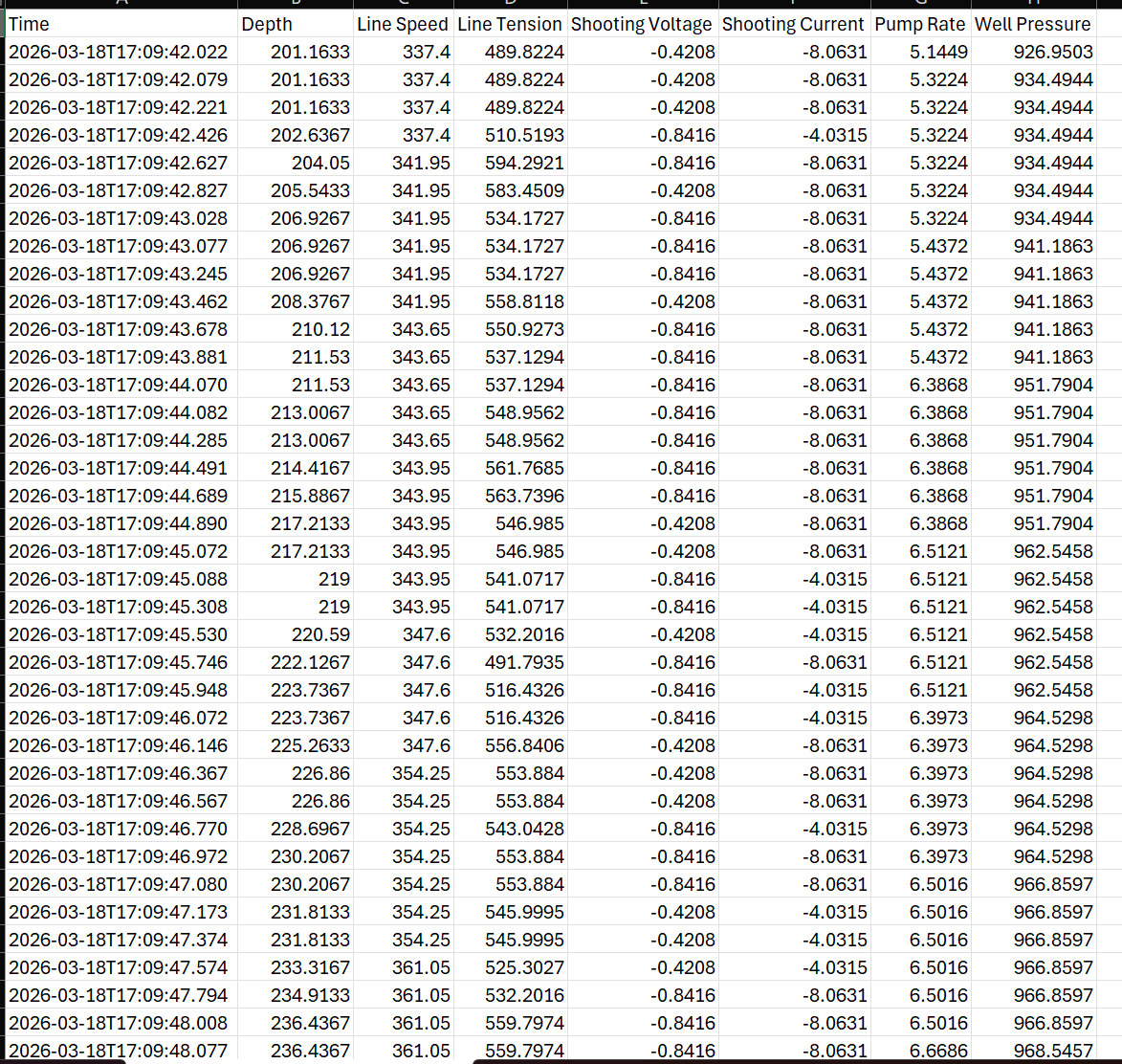
3.2 Generate CSV file
Click on any stage in the timeline to view all recorded information.
In the upper right corner, you’ll find the “Download .csv” option.
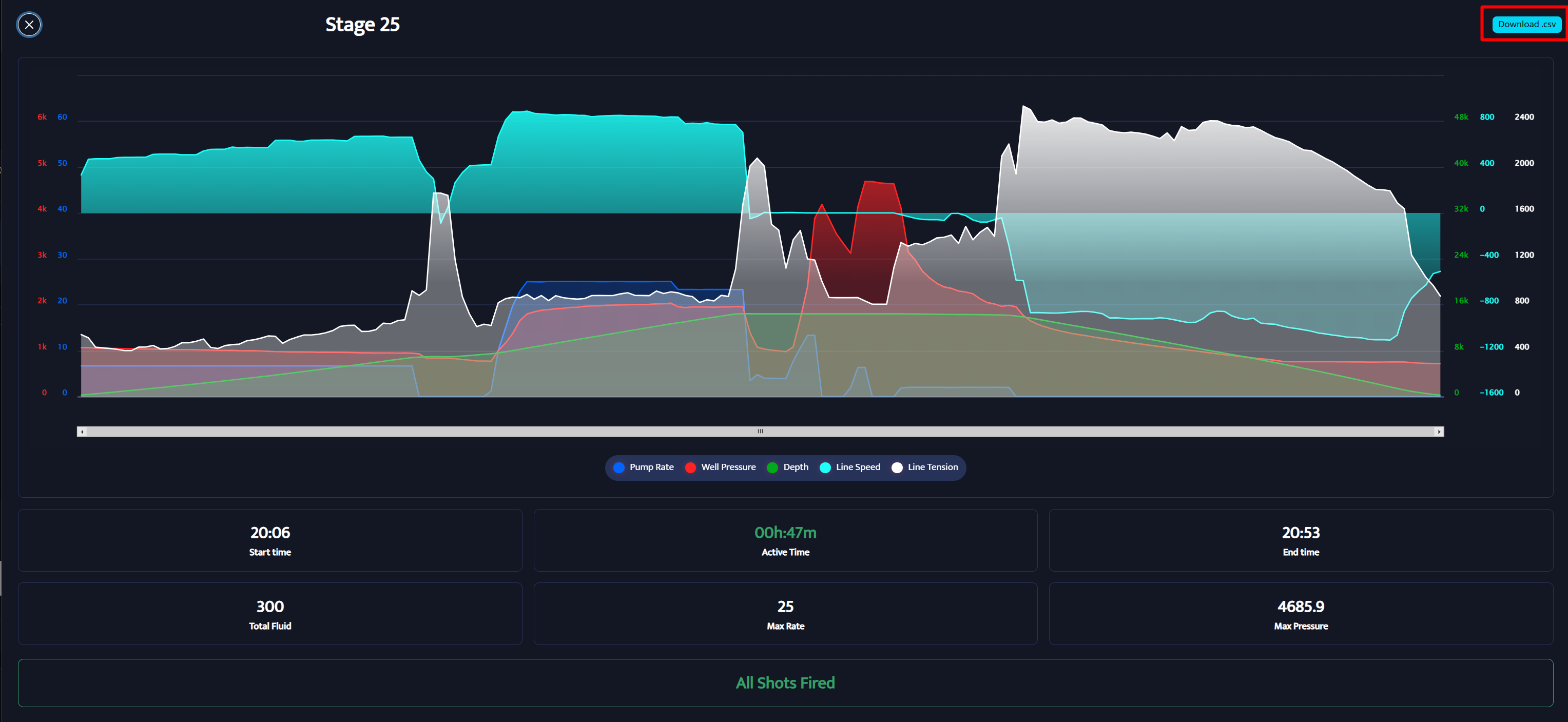
This will download a .csv file containing all the information recorded during the stage.
4. Runs Per Shift
This section shows how many runs were completed by each crew:
Day Shift
Night Shift
This helps compare shift performance between shifts.

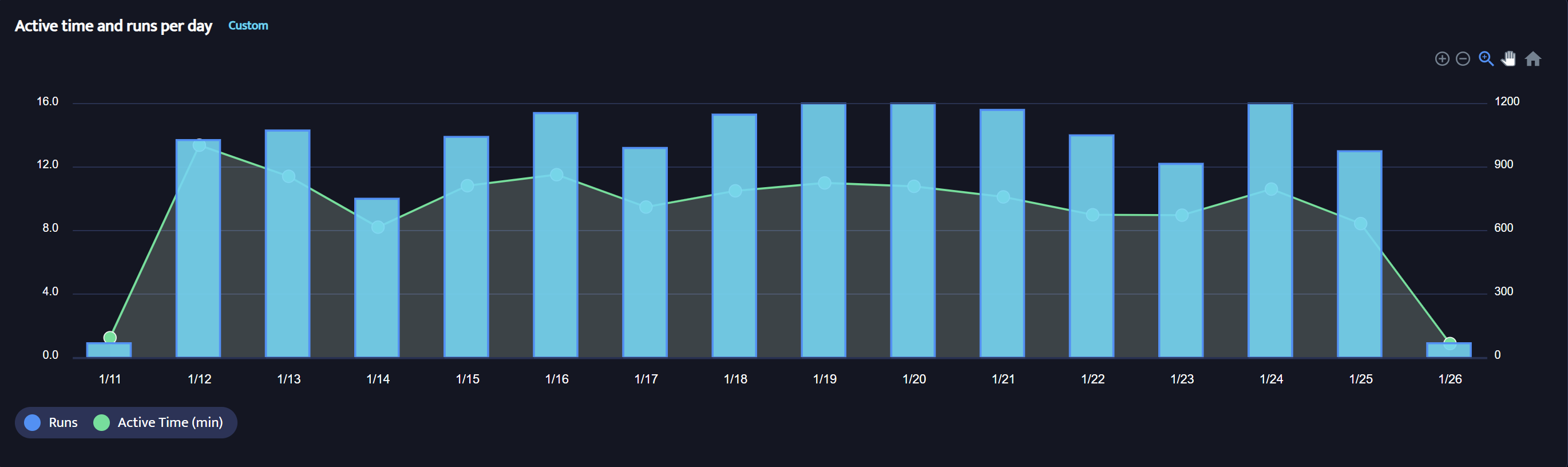
5. Active Time and Runs Per Day
This graph shows daily activity during the selected time window.
When you hover over a date, you’ll see:
Total runs completed
Total active time for that day
6. Stage Time
The Stage Time section displays stage and run duration over time in a graph.
This helps track trends in stage duration across the pad.

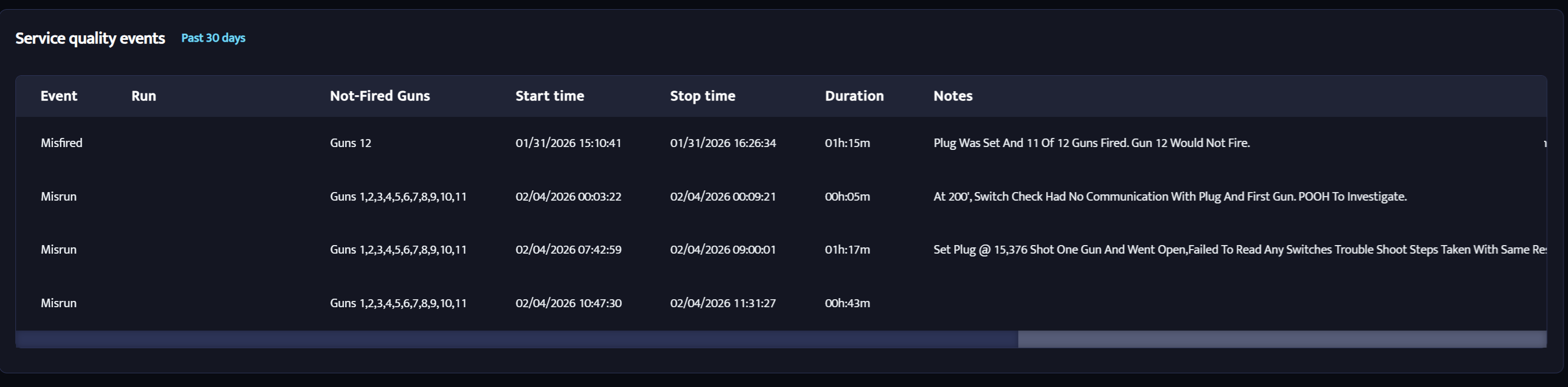
7. Service Quality Events
The Service Quality Events section shows any service quality issues recorded on the pad.
You can see details such as:
What happened during the event
Whether any guns did not fire
You can click on any event to open it and review all recorded data for that run.
Was this article helpful?
That’s Great!
Thank you for your feedback
Sorry! We couldn't be helpful
Thank you for your feedback
Feedback sent
We appreciate your effort and will try to fix the article